
Tap the “Settings” tab.
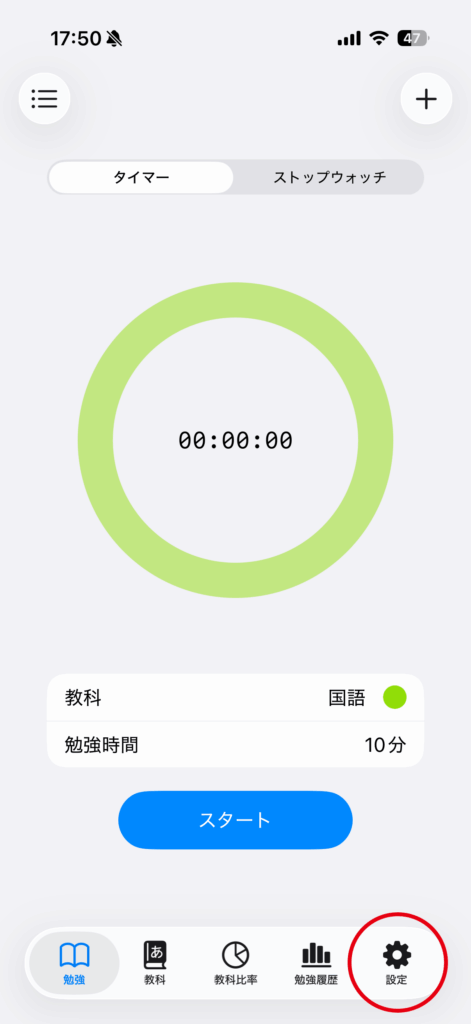
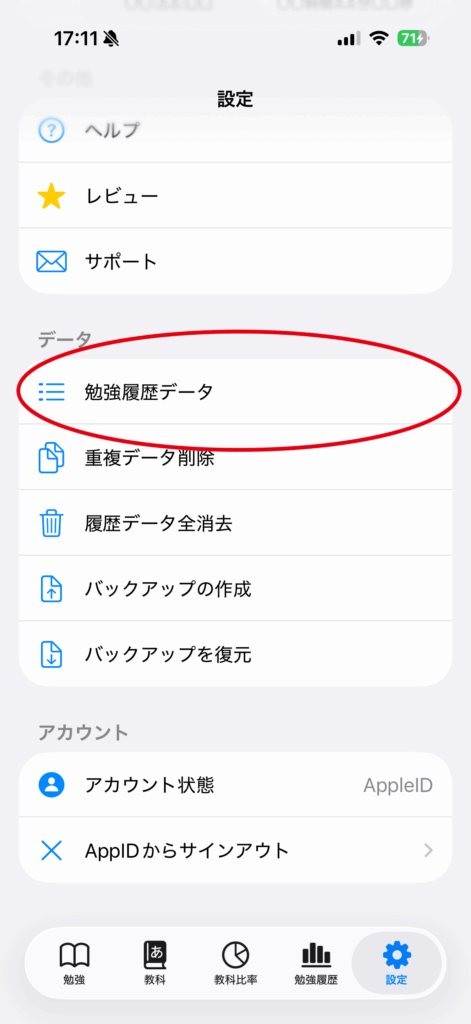
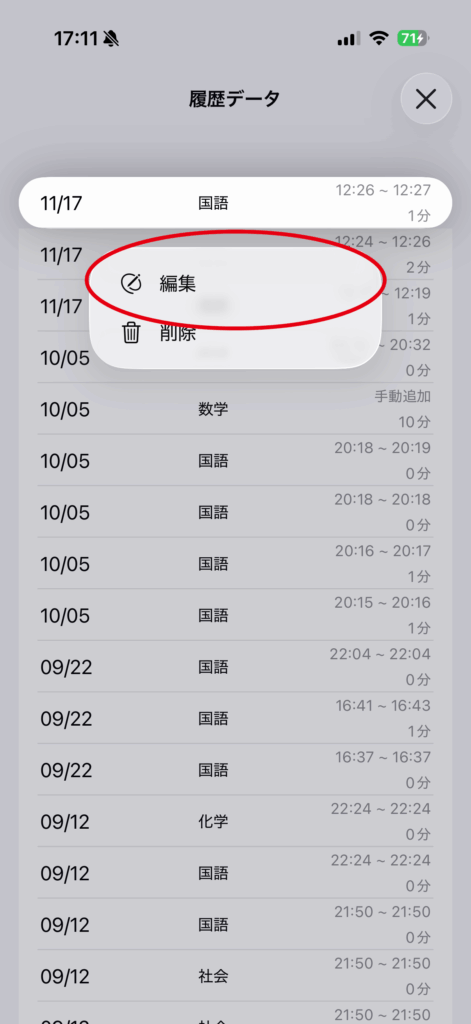
Open “Settings” in the app, then tap “Study History Data”.
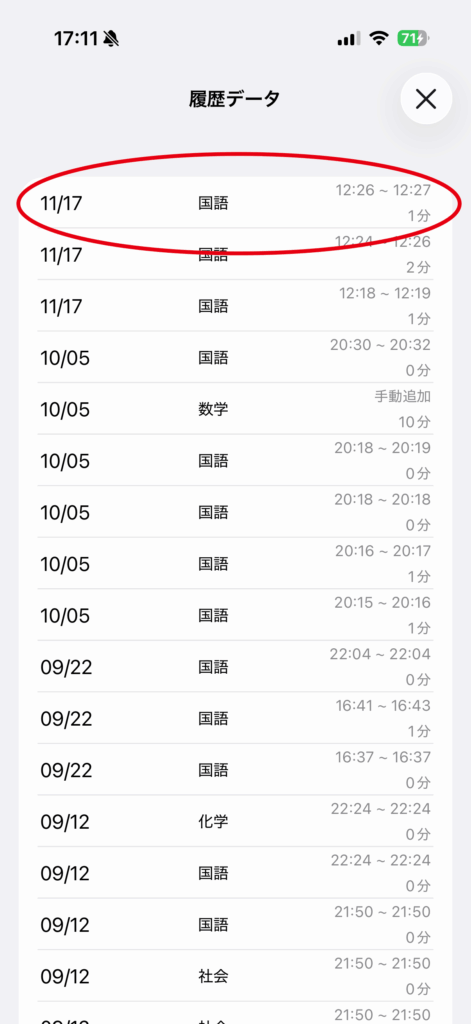
Long-press the data you want to delete.
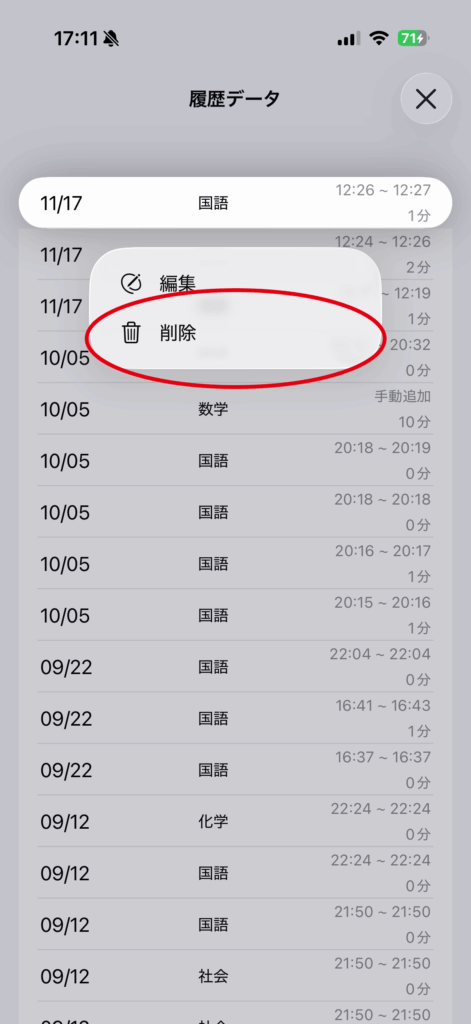
Tap “Delete” in the menu to remove the selected data.
Edit
Long-press the data you want to edit.
Tap “Edit” in the menu.
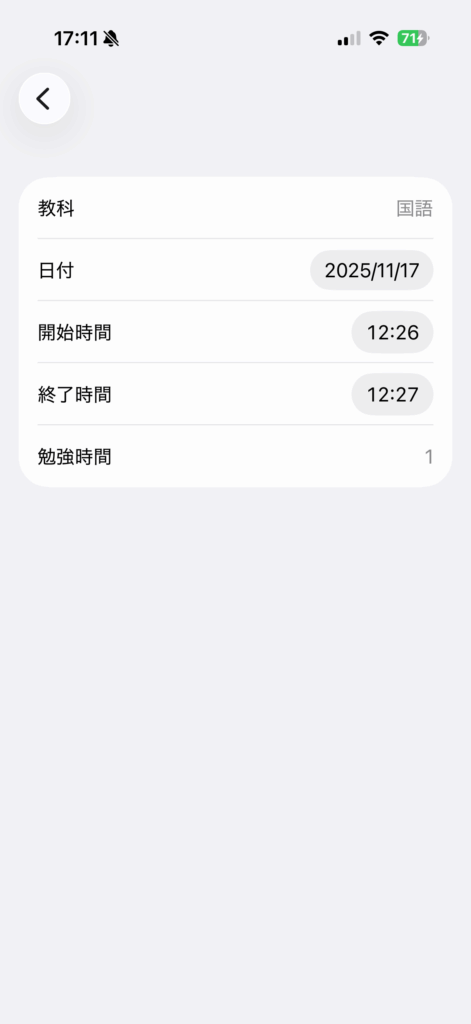
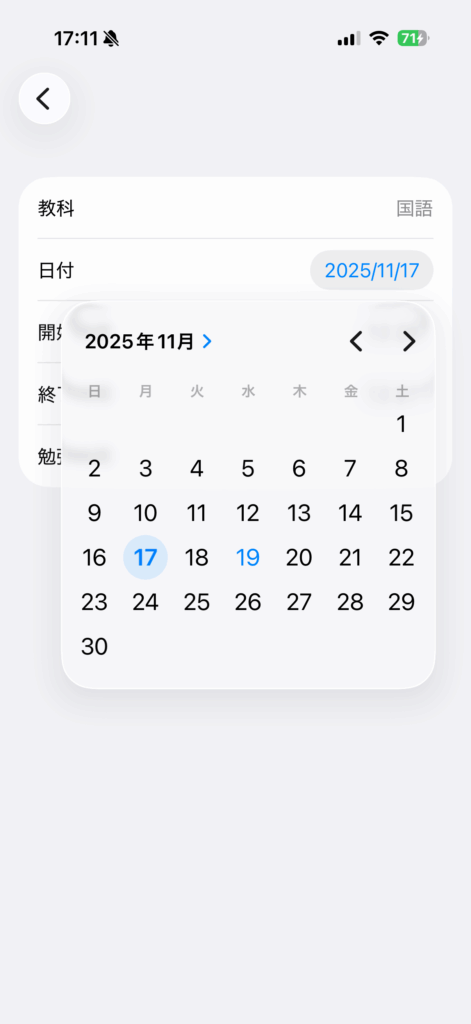
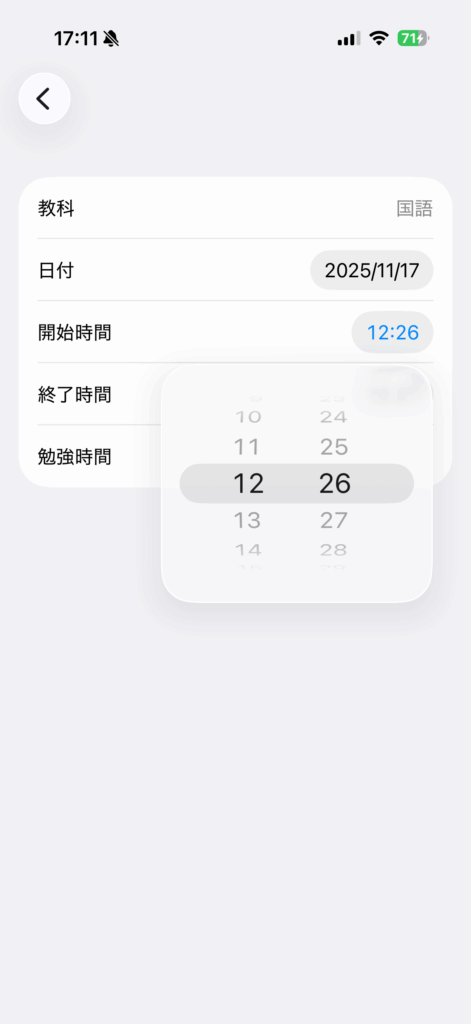
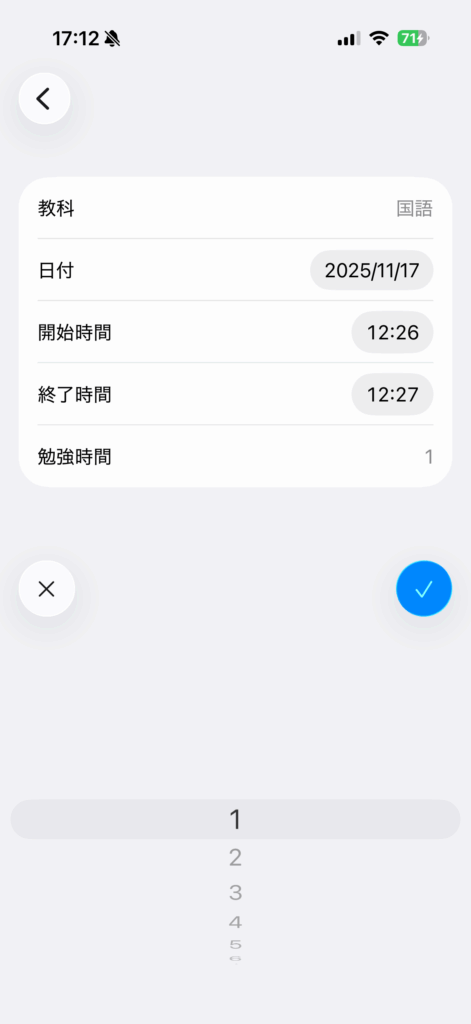
Tap the date and time you want to edit to make changes.
Another way to open the study log
In addition to “Study History Data” in Settings, the list button at the top left of the Study tab opens the same history.
Fields you can edit
You can change the subject, start time, end time, duration, and recorded date. Entries created without the timer are identified as manually added in the list.
Deleting an entry also removes it from chart totals. Create a backup before cleaning up a large number of records.