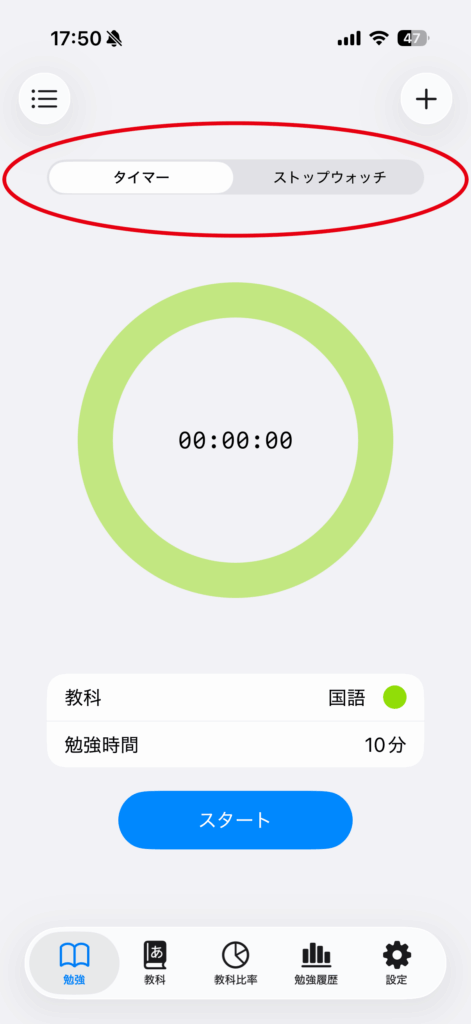
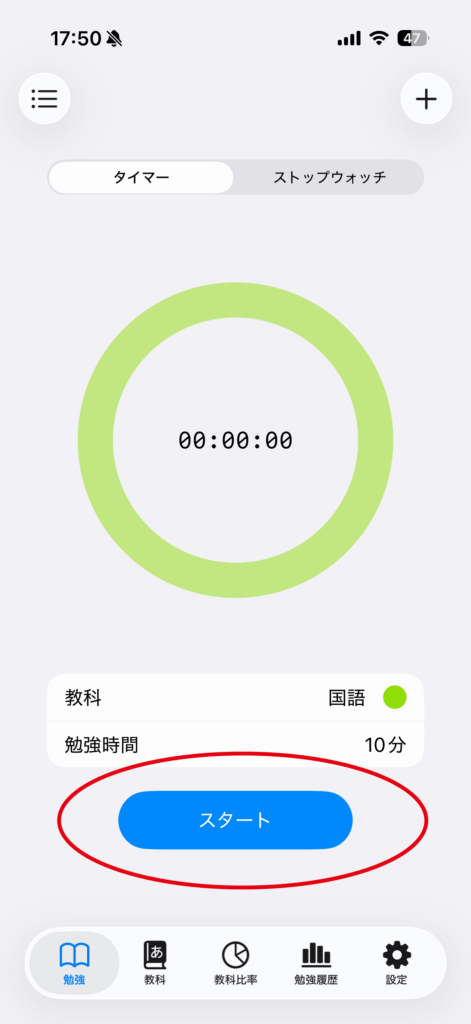
1.Select a Counting Method
Please select either the timer or the stopwatch.
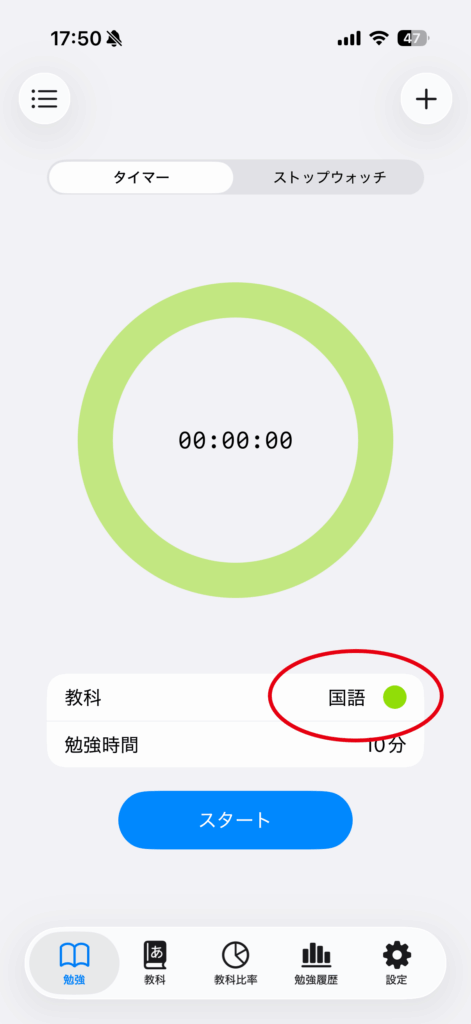
2.Select a Subject
Select the subject you want to study.
You need to register your subjects in advance.
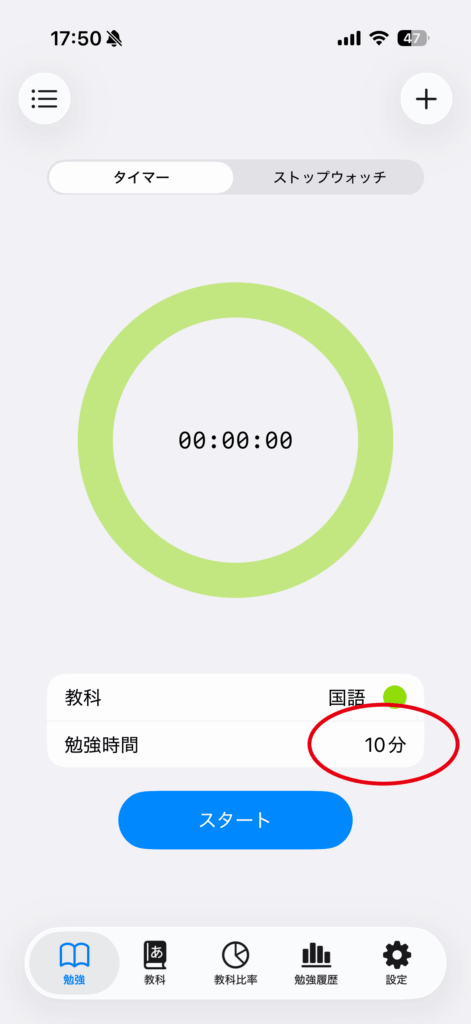
3.Select Study Time
You can select a duration between 10 and 120 minutes in 10-minute increments.
4.Tap “Start”
Important
- The current timer or stopwatch state is saved on the device. Returning to the app restores a running or paused session.
- You cannot start counting unless a subject has been registered in advance.
Timer or stopwatch
Use Timer when you want to choose a study duration in advance. Use Stopwatch when you want to measure an open-ended session without setting a finish time.
After a session starts, you cannot switch between Timer and Stopwatch until that session ends.
Pause, resume, and finish early
Tap “Pause” to stop measuring temporarily, then “Resume” to continue. If you tap “End” before the selected duration is complete, the app saves the time actually measured.
Using another app during a session
The current state is saved on the device. A running session continues while the app is in the background, and an allowed notification can alert you when a timer finishes. A paused session does not advance.
If you do not need notifications or they do not arrive, check this app’s notification permission in the iOS Settings app.