
Tap the “Study History” tab.
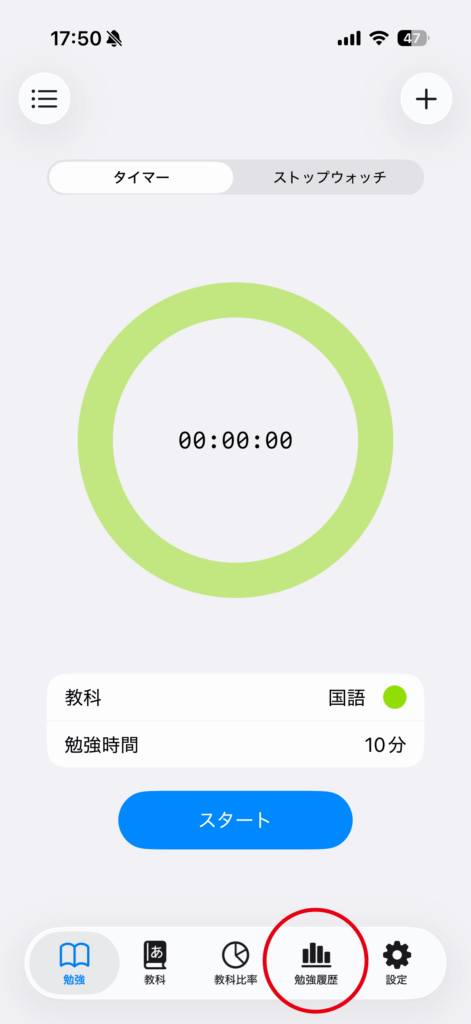
Displays your daily study time within the selected period as a bar chart.
You can check which subjects you studied and when.
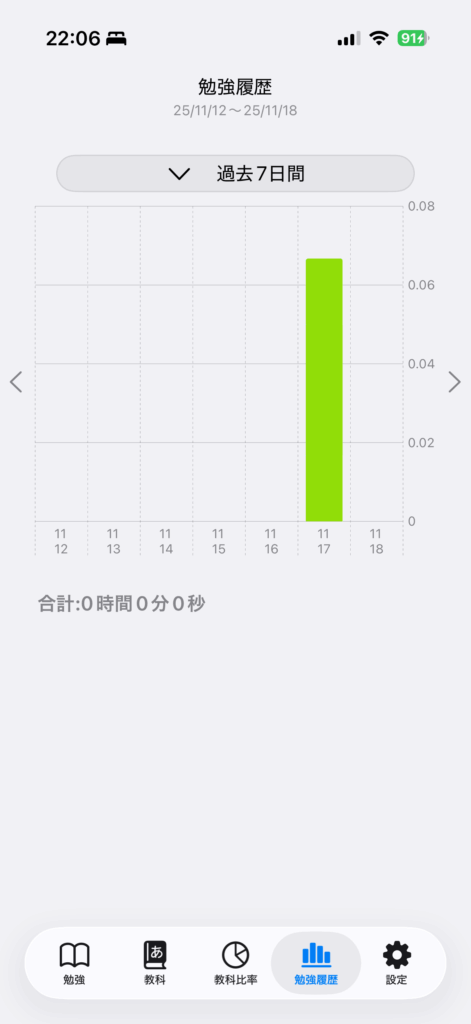
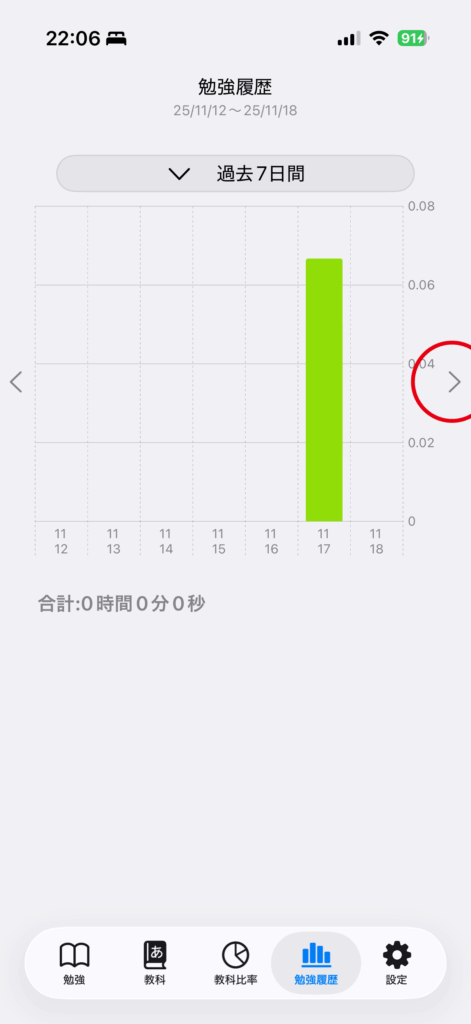
Tap the “>” next to the graph to view the next period.
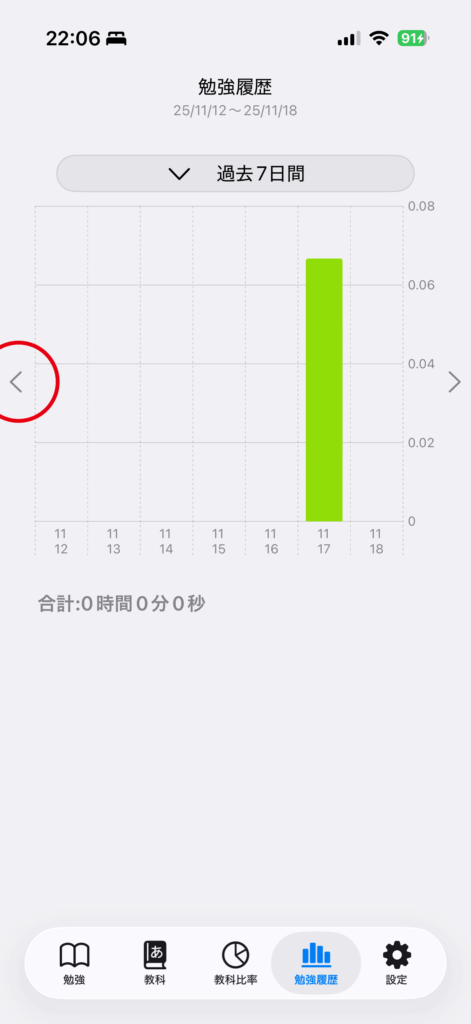
Tap the “<” next to the graph to view the previous period.
Change the displayed range
Choose 1 day, 7 days, 14 days, 1 month, 3 months, 6 months, 1 year, or your own start and end dates. Longer ranges are grouped by week or month. A custom selection can cover up to three years.
Inspect a bar’s details
Tap or drag across a date in the chart to filter the list below to that period’s subject breakdown. Tap the same position again to clear the filter.
Sort by subject or time
Use the top-right menu to sort by subject order, shortest time, or longest time. Chart units and time notation can be changed in Settings.