
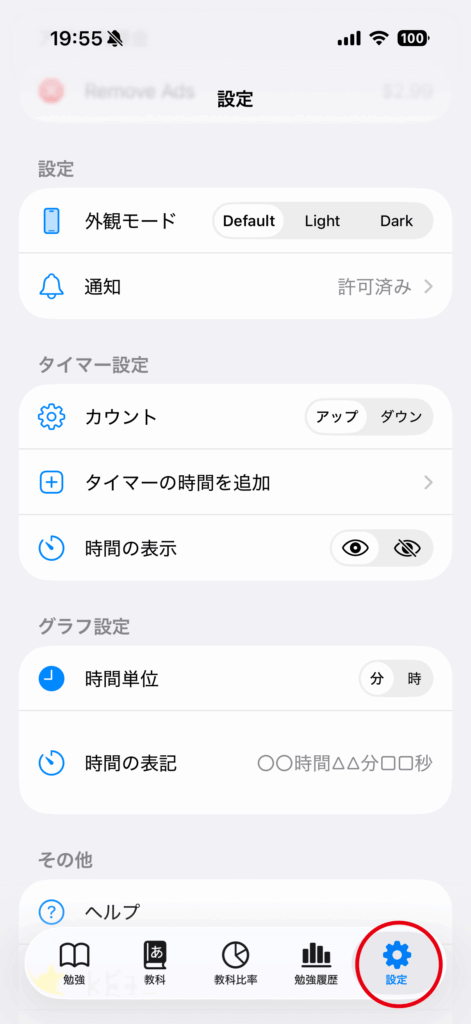
Tap the “Settings” tab.
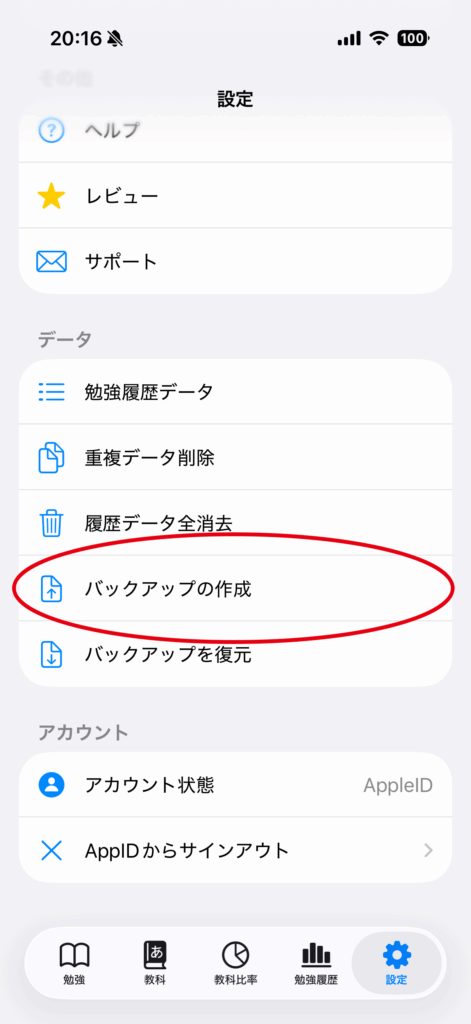
Tap “Create Backup”.
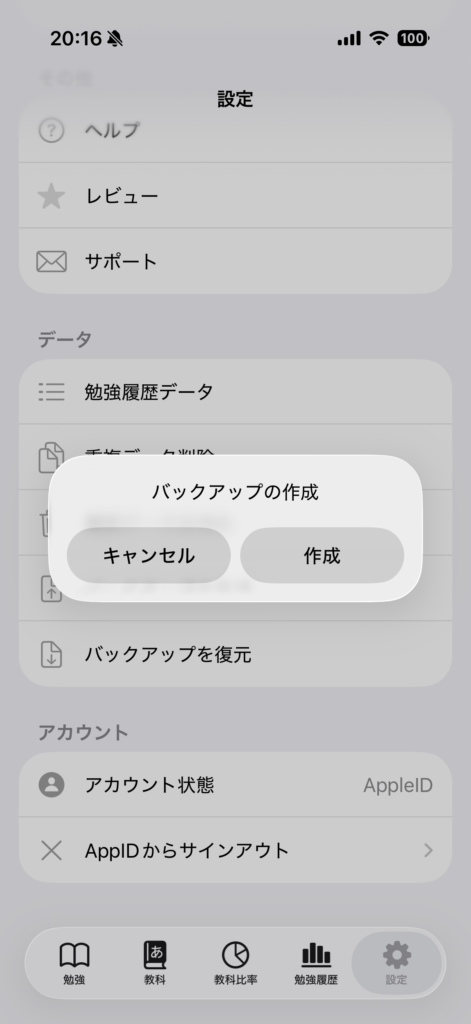
Tap the “Create” button.
Please save the file to your preferred location.
What the backup contains
The exported JSON file contains your registered subjects and study-history entries. Device settings such as purchase status, notification permission, and interface style are not included.
Create a backup before changing devices, changing account state, or editing many records, then save it somewhere you control, such as iCloud Drive.